Configure Wezterm on Windows for WSL
Setup Wezterm to Work with WSL Default on Windows
Posted Updated 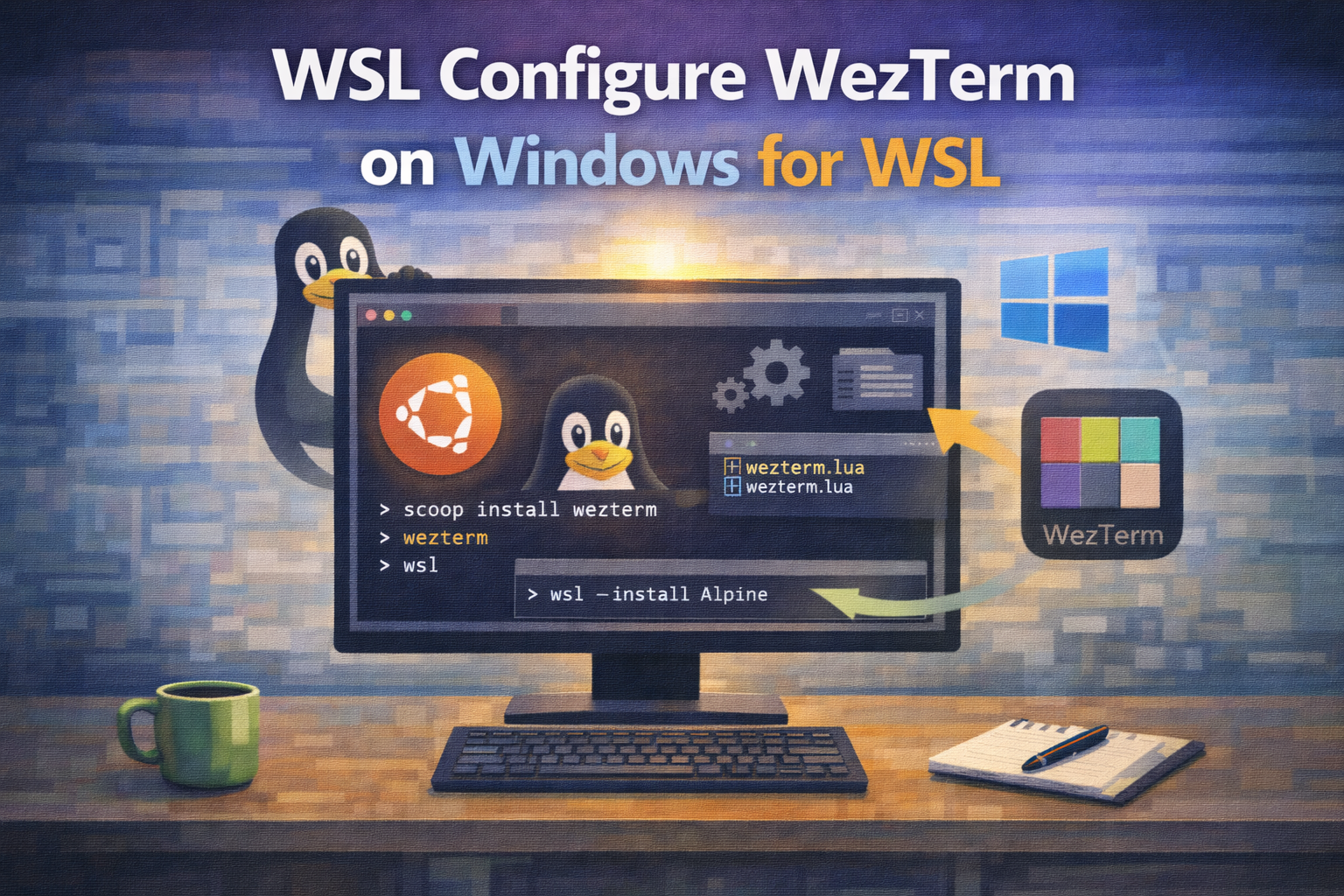
By
views 1 min read
Configure Wezterm on Windows for WSL
Introduction
Windows Terminal can feel sluggish inside WSL; Wezterm is a good alternative with many of the built-in features and still felling more responsive.
Install
Install Wezterm using winget
Winget:
1
winget install -e --id wez.wezterm
Configure Fonts
Install Nerd Fonts for maximum compatibility with Wezterm configuration:
The easiest way is to install it using scoop:
1
2
scoop bucket add nerd-fonts
scoop install nerd-fonts/JetBrainsMono-NF
Configure Wezterm
Drop the following config into C:\Users\<you>\.wezterm.lua:
1
2
3
4
5
6
7
8
9
10
11
12
13
14
15
16
17
18
19
20
21
22
local wezterm = require 'wezterm'
local mux = wezterm.mux
local act = wezterm.action

local config = {}
local keys = {}
local mouse_bindings = {}
local launch_menu = {}

if wezterm.config_builder then
  config = wezterm.config_builder()
end

config.font = wezterm.font('JetBrainsMono Nerd Font')
config.font_size = 11
config.launch_menu = launch_menu
config.disable_default_key_bindings = true
config.mouse_bindings = mouse_bindings

config.default_domain = 'WSL:Ubuntu'

return config
Run Wezterm
Now, once you open Wezterm, WSL Ubuntu distribution will be open automatically if configured.
You can change config.default_domain = 'WSL:Ubuntu' to any distribution you have installed if you prefer.
This post is licensed under CC BY 4.0 by the author.